I built this tool to make it easy for marketers and business owners to gather contact details from Google Maps without breaking the bank. With just a few clicks, I can find businesses in almost any city or industry - roofers, consultants, you name it.
The process is quick and organized. Even if I’m searching in smaller cities, it still works well. Once I set up the industry and location, the tool generates hundreds of leads in just minutes. It’s honestly kind of surprising how fast it pulls everything together.
To help others, I turned this Google Maps Scraper into an easy-to-use system that connects with an external data source. All you need is your email and an API key, and you’re ready to start collecting business info.
This approach is practical for finding potential clients and managing SEO opportunities. It also helps you improve your marketing efforts with accurate data.
I use a Google Maps extractor to grab company data from Google Maps automatically. It pulls details like business name, address, phone number, ratings, and reviews.
The tool also picks up website links and business categories. I can run searches for any city or industry, but it works best if I use the proper capitalization in location names.
| Type of Data | Example |
|---|---|
| Business Name | Best Roofing Co. |
| Phone Number | (305) 555‑0102 |
| Category | Roofing Contractor |
| Rating | 4.7 |
| Reviews | 35 |
The scraper saves me hours of manual research. I can collect up to 1,000 leads for free each month if I stay under the usage limits.
Since it works by location and category, I can focus on any market or city I want. It also helps me spot which prospects already have websites and SEO activity, so I can find potential clients faster.
Key advantages:
I use the scraper to find local SEO clients in industries like roofers, plumbers, or consultants. It also helps web developers and marketers reach businesses that need online services.
Example tasks include:
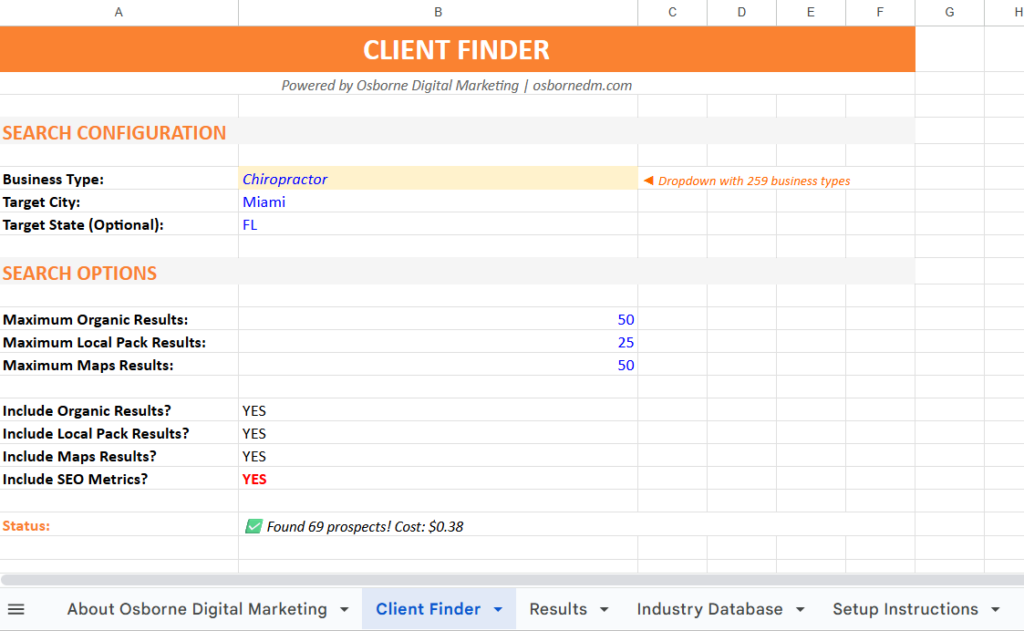
I created the SEO Client Locator so you can find business leads straight from Google Maps. You can search any industry and city you want.
There are over 260 business categories to pick from - roofers, plumbers, consultants, contractors, and more.
To start:
The tool pulls helpful details like business names, websites, phone numbers, ratings, and reviews. You’ll also get extra SEO data, such as traffic and keyword loss.
| Data You’ll Get | Description |
|---|---|
| Business Name | The company listed on Google Maps |
| Website Link | The link on their Google profile |
| Location | City and region shown in Maps |
| Contact Info | Listed phone number |
| Reviews | Star rating and number of reviews |
Once the scraping finishes, all results show up in one table, ready for you to use.
If you want the free marketing resource, head to my Free Marketing Checklist page. You’ll find setup instructions and a link to create your own version of my Google Sheet.
Make sure to:
Once you add your key, you’re set to start collecting leads for free each month.

I’ve listed around 260 business types you can target. You can look for contractors, roofers, consultants, or really any type of company listed on Google Maps.
Use the checklist to pick your favorite categories.
| Example Choices | Description |
|---|---|
| Roofers | Ideal if you offer local marketing services |
| Plumbers | Common trade with strong local demand |
| Consultants | Good for B2B marketing leads |
Mark the categories you want, and the scraper pulls data from those.
Once you’ve chosen the business type, type in the city name and use capital letters for accuracy. For example, it’s Fort Lauderdale, not fort lauderdale.
Here’s the simple format:
This helps the Google Maps scraper collect the right business results from Google Maps.
Now you can decide how many results to collect. Smaller cities might give you fewer leads, while larger ones like Miami or Los Angeles can handle bigger searches.
Suggested limits by city type:
| City Size | Recommended Results |
|---|---|
| Large City | Up to 500 |
| Medium City | Around 250 |
| Small City | 50–200 |
For a quick test, keep it at about 50 to save time. After you set the numbers, click Find SEO Clients to start collecting data.
You’ll see a progress bar tracking your search. When it’s done, you get a full list of leads: business names, websites, phone numbers, locations, and ratings.
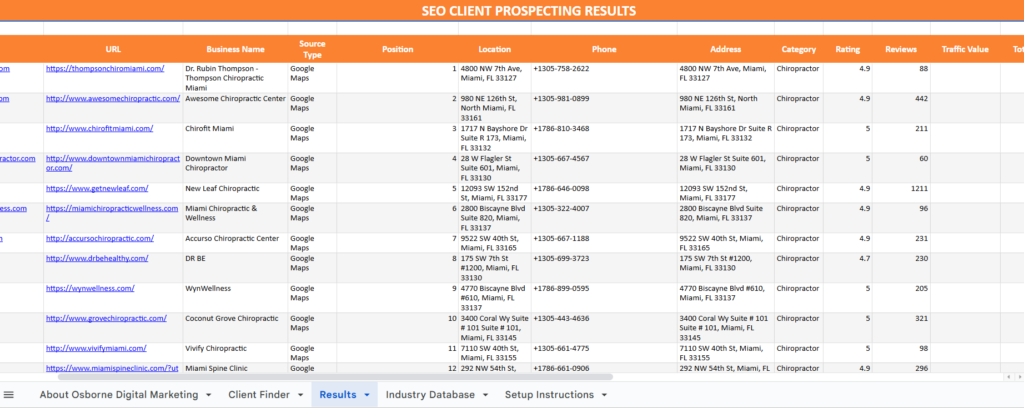
When I finish a scrape, the data loads into a clear table. Each business shows up by name, category, and location.
I can see their phone number, rating, and number of reviews. Each entry includes the link from their Google Business profile, so I can check a company’s site directly.
Here’s a quick look at the main columns you’ll see:
| Field | Description |
|---|---|
| Business Name | The name as it appears on Google Maps |
| Category | The type of service or industry |
| Location | City or region scraped |
| Phone | Public contact number |
| Rating & Reviews | Average user rating and count |
| Website Link | URL from their business profile |
This layout helps me spot prospects worth contacting. I can compare similar businesses in one view.
When I start a scrape, a progress bar pops up to show what’s happening. The status might say things like searching local results or collecting organic listings.
I watch the prospect count climb as the tool processes each result. If a message shows an estimated cost, I don’t stress - it’s just a rough guess.
Any small amount that appears is an estimate, but the tool still lets me collect a bunch of results for free if I stay within the limit.
Once the business data loads, I check the SEO info next to it. This section shows metrics like site traffic and lost keywords.
These numbers help me spot businesses that might need digital marketing support. I usually check:
By looking at these metrics, I get a sense of which prospects are good candidates for outreach or optimization offers.

I start by heading to the Data for SEO link in the setup tab. After signing up, I get a small credit balance, which lets me use the tool right away.
The platform gives me an API key that I copy straight from my account. This key connects my spreadsheet to the Data for SEO system, powering the scraping and data collection.
Once I have the key, I open the sheet and go to the setup area. I type my email address and API key into the right fields.
It’s smart to make a personal copy of the sheet first, so I can edit it without messing up the shared version. After that, the sheet links to my account and starts pulling live data when I run searches.
When I sign up, I get a $1 credit to test things out. That covers scraping about 1,000 prospects for free if I skip the extra SEO metrics.
Each request costs just a few cents, but more detailed data like traffic or keyword loss uses a bit more. Here’s a quick look at typical costs:
| Task | Approx. Cost | Notes |
|---|---|---|
| Basic Maps scraping | Free up to $1 credit | ~1,000 listings |
| Additional results | ~$0.08 per 100 | Varies by region |
| With SEO metrics | Slightly higher | Uses more API units |
I usually check my credit balance before starting new runs, just to make sure everything works smoothly.
I use the scraper to pull data from over 260 business categories on Google Maps. This covers almost every kind of business - roofers, plumbers, consultants, contractors, you name it.
I just pick the industry I want, and the tool grabs business names, contact details, and other handy info.
The scraper gives me clear data for each lead - website URL, category, location, phone number, and ratings. That makes outreach a lot simpler.
I always make sure location names are properly capitalized (like “Fort Lauderdale”) before running searches. Google really does care about how city and state names are written.
I focus on geo-specific targeting to find leads right where I want them. By mixing industry keywords with exact city names, I get more relevant data and waste less time. Here’s a setup table that helps me stay organized:
| Step | Action | Example |
|---|---|---|
| 1 | Choose industry | Roofers |
| 2 | Add city name | Fort Lauderdale |
| 3 | Select data type | Google Maps results |
Large cities like Miami or Los Angeles have more listings, so I set the scraper to pull around 500 results at once. Smaller cities, like Fort Lauderdale, usually give fewer businesses, so I keep searches to about 200–250 results.
I adjust the result count based on city size. This keeps things fast and the data clean, whether I’m working with a big metro or a smaller market.
When scraping, I often run into issues from small mistakes in how the search terms are entered. For example, city names must start with capital letters.
If I type “fort lauderdale” instead of “Fort Lauderdale,” the scraper might not return data. Setting realistic search limits matters too - small cities may only give a few hundred results, while big cities can handle more. If I go too high, the scraper slows down or misses data.
I always create a copy of the working sheet before editing. I don’t give others access to my main files.
This protects the formulas and settings I’ve set up. Once the scraper pulls data, I name each sheet clearly, like Fort Lauderdale Roofers or Miami Contractors.
If a sheet doesn’t update or load correctly, I check the following:
| Problem | Likely Cause | Quick Fix |
|---|---|---|
| Data not loading | Editing original sheet | Create and edit a copy |
| Missing results | Wrong search name or limit | Review search inputs |
| File errors | Cached formulas | Refresh or duplicate the sheet |
I make sure the scraper connects with the correct API by copying the API key exactly as shown in the dashboard. One typo, and I’m stuck with connection errors.
To avoid grabbing the wrong data, I double-check that industry categories and city names match what I want. I also only turn on SEO metrics if I actually need them.
If results look weird, I re-run the search with a smaller limit or turn off optional metrics. That usually keeps things accurate and helps me spot errors early.
I’ve set up this Google Maps Scraper tool so anyone can collect data from Google Maps without paying for small batches. Just follow each step - add the industry, location, and your API key.
Here’s what I focus on:
Result Fields:
| Data Collected | Description |
|---|---|
| Business Name | The official listing name |
| Category | Industry type (e.g., roofer, consultant) |
| Phone Number | Direct contact number |
| Website/Domain | Link to the business website |
| Ratings & Reviews | Basic performance metrics |
Once I finish a scrape, I get a full list of businesses with all their contact details. After linking the API key, the process runs on its own and brings in hundreds of results for outreach or analysis.
